
Download Screen Record HD – Free HD Screen Capture Tool
Overview
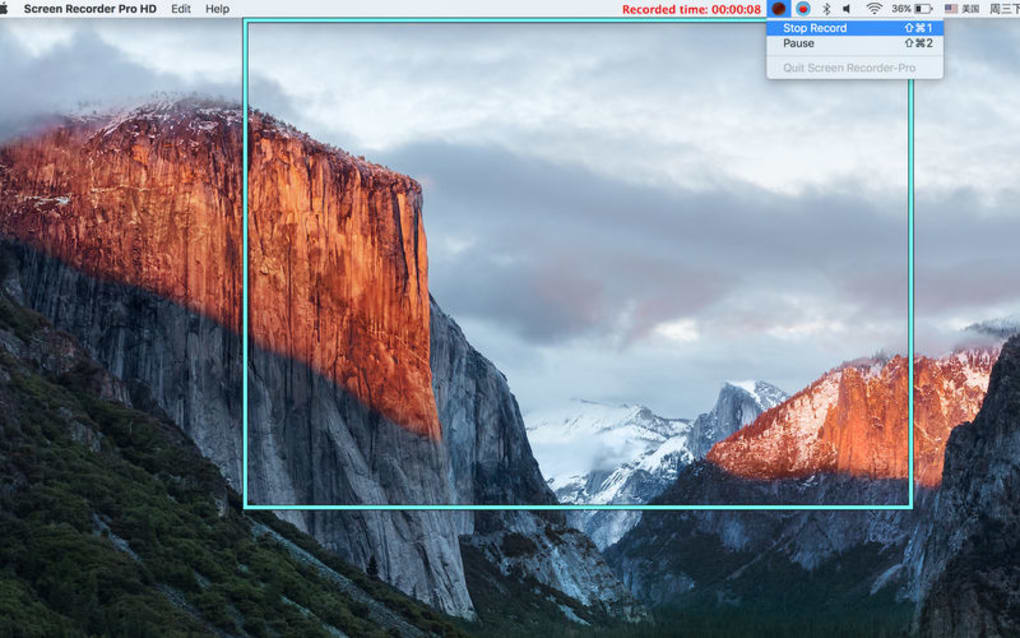
Screen Record HD is a lightweight, free utility that lets you capture anything that appears on your computer monitor in crystal‑clear high‑definition quality. Whether you need to record a short tutorial, capture a fleeting moment from a video conference, or preserve a game highlight, this tool provides a simple, one‑click solution. The interface is intentionally minimal: a compact toolbar sits at the edge of the screen, offering “Record”, “Pause”, and “Stop” buttons that are instantly recognizable even to first‑time users.
While the core functionality mirrors that of more complex programs such as OBS Studio, Screen Record HD focuses on speed and ease of use, eliminating the steep learning curve that often deters casual users. The biggest limitation is the built‑in 50‑second cap on video recordings, a design decision meant to keep the file size small and the software fast. Despite this constraint, the app excels at short‑form recordings, delivering smooth playback with no visible compression artifacts.
Audio can be captured simultaneously from the system or an external microphone, making it suitable for voice‑over work or quick commentary. The program runs silently in the background, consumes minimal RAM, and automatically saves files to a dedicated “Screen Record HD” folder on your desktop, ensuring that your captures are easy to locate. In short, Screen Record HD offers a secure, free, and fast way to record screen activity in HD, perfect for students, educators, and anyone who needs a quick visual record without the overhead of a full‑featured streaming suite.
Core Features & Compatibility
- HD screen capture up to 1080p resolution
- Full‑screen or custom‑area recording by dragging a resizable window
- Simultaneous system‑audio and microphone capture
- One‑click start/stop controls for instant recording
- Automatic saving to a preset folder with timestamped filenames
- Built‑in 50‑second video limit to keep file sizes small
- Lightweight installer (<10 MB) that runs on Windows 7, 8, 10, and 11
- Support for common video formats (MP4, AVI) and audio formats (WAV, MP3)
- Free updates with bug fixes and minor UI enhancements
- Secure processing – no internet connection required for recording
Screen Record HD is designed exclusively for the Windows desktop environment. The Windows 7/8/10/11 compatibility ensures that the software can be installed on both older machines and the latest hardware without any additional drivers. While there is currently no native macOS, Linux, Android, or iOS version, the Windows‑only focus allows the developers to fine‑tune performance and keep the file size under 10 MB.
The application does not require administrative privileges to run, though installing it for the first time may prompt for standard user permission to write to the program files directory. Because the tool works offline, it is ideal for secure environments where network access is restricted or where privacy is a concern. Users who need to capture longer sessions can export the short clips and stitch them together in a video editor, effectively bypassing the 50‑second limit while still benefiting from the app’s high‑quality capture engine.
Installation, Setup & Usage Guide
Getting started with Screen Record HD is straightforward and can be completed in under five minutes, even for users with limited technical experience.
Step 1 – Download the Installer
Visit the official website and click the prominent “Download for Windows” button. The installer file (ScreenRecordHD_Setup.exe) is approximately 9 MB, which ensures a quick download even on slower connections.
Step 2 – Run the Installer
Locate the downloaded file and double‑click to launch the wizard. Follow the on‑screen prompts: accept the End‑User License Agreement, choose the destination folder (the default location is recommended), and click “Install”. The process typically takes less than a minute.
Step 3 – Initial Launch
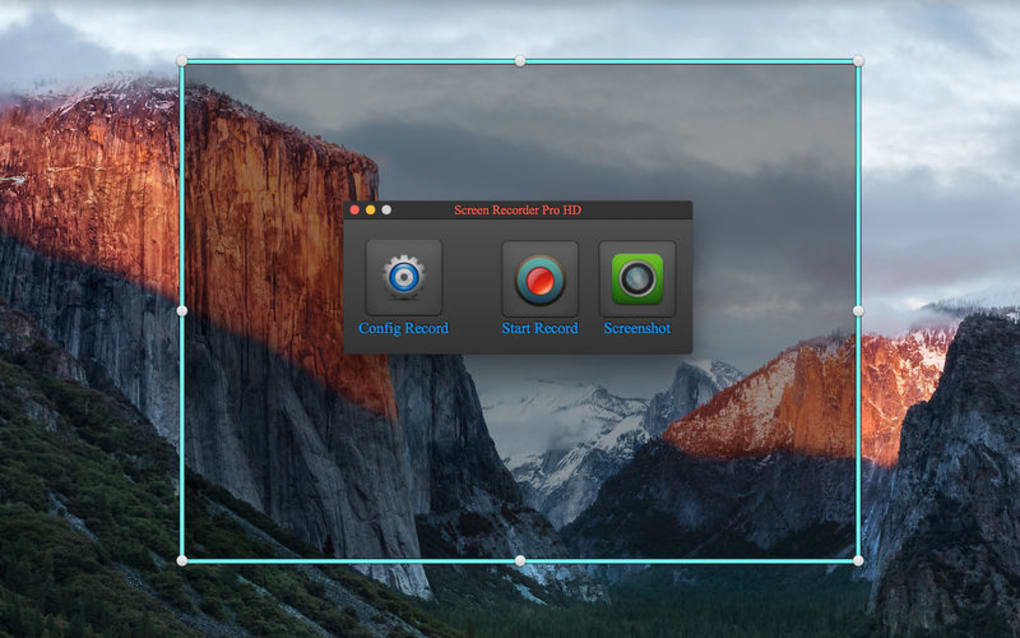
After installation, the program automatically adds a small icon to the system tray. Click the icon to open the main control panel. The first launch may display a brief “Welcome” overlay that explains the three primary buttons: Record, Pause, and Stop.
Step 4 – Configure Recording Area
To capture a specific portion of the screen, click the “Select Area” button. A translucent rectangle appears, which you can resize by dragging its edges. Position the rectangle over the content you wish to record, then click “Confirm”. For full‑screen capture, simply skip this step.
Step 5 – Choose Audio Source
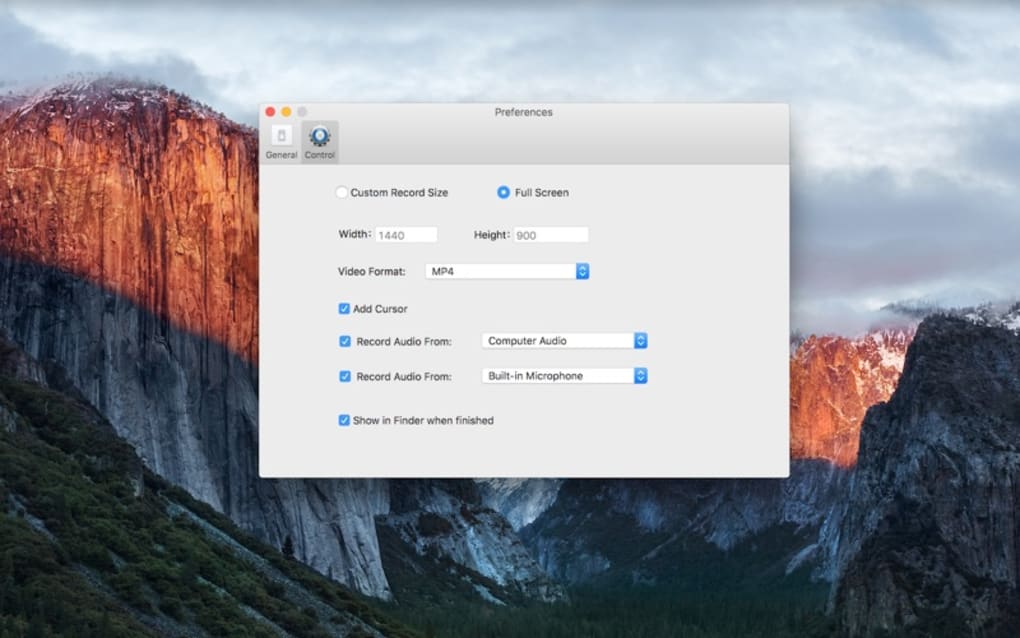
In the Settings menu, you can toggle between “System Audio”, “Microphone”, or “Both”. Selecting “Both” is ideal for tutorials where you want to narrate while showing on‑screen actions.
Step 6 – Start Recording
Press the red “Record” button. A subtle countdown (3‑2‑1) gives you a moment to prepare. The recording timer appears in the corner of the screen, counting up to the 50‑second limit. If you need to pause, click the “Pause” button; click “Record” again to resume.
Step 7 – Stop & Save
When you reach the end of your clip or hit the “Stop” button, the software automatically saves the video to the Screen Record HD folder on your desktop. Filenames include the date and time for easy identification (e.g., ScreenRecord_2024-10-25_14-30-12.mp4).
Step 8 – Review & Export
Open the saved file with any media player to verify quality. If you need to edit or combine multiple clips, you can import them into a free editor such as Shotcut or the built‑in Windows Photos app.
Overall, the installation and usage workflow is designed for speed and simplicity, allowing you to focus on content creation rather than software configuration.
Pros, Cons & Frequently Asked Questions
Pros
- Free and lightweight – under 10 MB installer.
- High‑definition capture (up to 1080p) with clear audio.
- Intuitive interface suitable for beginners.
- No internet connection required – works offline and securely.
- Automatic file organization with timestamped names.
Cons
- Hard 50‑second video limit restricts longer recordings.
- Windows‑only; no native macOS, Linux, Android, or iOS version.
- Lacks advanced features like live streaming, webcam overlay, or chroma key.
- No built‑in video editor; users must rely on external tools for post‑production.
- Limited customization of output codecs and bitrates.
FAQ
Is Screen Record HD truly free or are there hidden charges?
Screen Record HD is completely free for personal use. The installer does not prompt for payment, and there are no hidden in‑app purchases. Updates are also provided at no cost.
Can I change the 50‑second recording limit?
The limit is built into the free version to keep file sizes small and ensure fast performance. At present there is no option to extend it within the free app; users needing longer captures must combine multiple clips or consider a paid alternative.
Which audio sources does the software support?
You can record system audio, microphone input, or both simultaneously. The selection is made in the Settings panel before you start recording.
Is the recorded video saved in a common format?
Yes, recordings are saved as MP4 files, which are widely supported by most media players and video editors on Windows, macOS, and Linux.
Does Screen Record HD run silently in the background?
After installation, the program adds a small icon to the system tray. It stays idle until you launch a recording, consuming only a few megabytes of RAM, making it ideal for low‑spec machines.
Overall Rating: 4.1 out of 5
Conclusion & Call to Action
Screen Record HD delivers exactly what its name promises: a fast, free, and secure way to capture your screen in high definition. Its minimalist design and one‑click workflow make it an excellent choice for students, educators, and professionals who need short, high‑quality clips without the overhead of a full‑featured streaming suite. While the 50‑second cap and Windows‑only availability are notable drawbacks, the application’s strengths—HD quality, low resource usage, and offline security—outweigh these limitations for many everyday scenarios. If you regularly create tutorials, record quick bug reproductions, or need a reliable tool for short video snippets, Screen Record HD is a solid addition to your software toolbox.
Ready to start capturing your screen in crisp HD? Download Screen Record HD now and experience a seamless recording process that puts your content creation first. Remember to bookmark the official site for future updates and enjoy the peace of mind that comes with a free, secure, and hassle‑free screen recorder.







